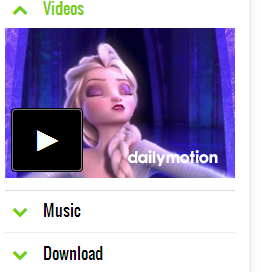
TOTAL VISITS

Sunday, 12 April 2015

Facebook Page Plugin Shortcode For Blogger

Facebook page plugin shortcode

Facebook Like Box plugin is deprecated and will stop working on June 23rd 2015. Facebook has suggested to use the new Page Plugin instead. Therefore we are releasing today the Blogger shortcode for Facebook Page Plugin which lets you easily embed and promote any Facebook Page on your website or blog, your visitors can like and share the Page without having to leave your site. You can also show a simple feed of your Page Posts. You can now embed the Page Plugin inside blog posts, sidebar widgets and even inside blogger comments with just a simple one line code.

1. Install Blogger Shortcode Plugin

First and foremost install the Blogger Shortcode Plugin in order to make this Page Plugin work. Follow these 7 easy steps shared on the tutorial link below.

After you have installed the plugin, you can then follow the steps discussed below to start embedding the FB Plugin on your blog anywhere you want.

2. Add Facebook JavaScript SDK

(Optional Step)

If you have already added Facebook JS SDK code on your templates then you can skip this step else following these steps:

1 Go To Blogger > Template

2 Backup your template

3 Click Edit HTML

4 Paste the following code just below <body>

<div id='fb-root'/>
<script>
//<![CDATA[
(function(d, s, id) {
  var js, fjs = d.getElementsByTagName(s)[0];
  if (d.getElementById(id)) return;
  js = d.createElement(s); js.id = id;
  js.src = "//connect.facebook.net/en_US/sdk.js#xfbml=1&version=v2.3";
  fjs.parentNode.insertBefore(js, fjs);
}(document, 'script', 'facebook-jssdk'));
//]]>
</script>

5 Save your template and you are all done!

3. How to add Facebook Page Plugin Shortcode?

Add the following shortcode anywhere you want to make the Page Plugin display. You can add it almost on any location, may that be your blog composer, HTML/JavaScript widgets or Blog comments.

[facebook src="bloggertricks"/]

Replace bloggertricks with your Fan page username.

Output:

shortcode for facebook page plugin

That's it! =)

Complete List of Supported Attributes

Following are attributes that you can use to configure and customize the settings in shortcode.

Attribute Definition
src Points to Facebook Fanpage username.
width Changes width of the FB iFrame. Minimum allowed width is 280
height Changes height of the Page Plugin. Minimum allowed height is 130
hide-cover Setting it to "true" will hide your Cover photo. By default its value is false
posts Setting it to "true" will display your Page Posts. By default it is set to false.
faces Setting it to "false" will hide your Friend's faces i.e. Profile Display Pictures. By default the value it set to true

For example if you wish to hide the facebook cover, show page posts, and set the width & height of the page plugin then use the attributes in this format

[facebook src="bloggertricks" width="500" height="400" hide-cover="true" posts="true"/]

Output:

custom Page Plugin shortcode

Need help?

I hope this shortcode makes your job easy when it comes to sharing your FB Page on your blog. You can now embed it anywhere with a single line of code and there is no more a need to paste that ugly long Facebook code. Let me know if you needed any further assistance.

Wish you a happy sharing experience. Peace and blessings buddies! :)

Wednesday, 8 April 2015

What You Need To Know About Google's New Mobile-Friendly Update?


Google Algorithm Update


According to Google Webmaster Central, Google will be rolling out the most significant mobile algorithm change to date starting April 21. Google already owns the mobile revolution, with Android as the biggest mobile platform, Google Search as the biggest mobile search provider, and Play Store as the largest mobile app store. Google wants to push forward with more control over websites, and hence a 'mobile-friendly' algorithm update is inevitable. Here is what you can expect from the update starting April 21.


This is a significant change


This change will affect mobile searches in all languages worldwide and will have a significant impact in search results. What will be the actual impact of an algo change that is �significant�? It�s anyone�s guess. Already, we know that this update will be bigger than Panda or Penguin. We also know that Google considers mobile to be so significant that they are working to dominate nearly all of its manifestations. With this search update, we should brace ourselves for a major adjustment in the way that mobile search functions.


App indexing is important


App indexing is a new feature of the algorithm that will be exclusive to sites with associated Android apps. And according to Google Webmaster Central:


Starting today, we will begin to use information from indexed apps as a factor in ranking for signed-in users who have the app installed. As a result, we may now surface content from indexed apps more prominently in search.


The purpose of this feature is probably to tighten the connection between mobile search and mobile application. Eventually, there will probably be little distinction between the two. Bridging the gap via search is a logical choice.


Real-time algo


This algorithm will run in real-time, so technically, you can make changes any day, and as soon as Google picks up on the change, the site will start to benefit from the new mobile-friendly algorithm change.


Obviously, Google can only assess a site�s mobile friendliness when it crawls the page and indexes it for search. At this point, your site is scored. If the page is not mobile friendly on April 21, but becomes mobile-friendly on April 25, then we can assume that Google�s next crawl should be able to identify it as such.


Each page assessed individually


A notable feature of the mobile algorithm is that it analyzes mobile compatibility on a page-by-page basis, rather than a website-wide basis. So if your site has some mobile-optimized pages, but some non-optimized ones, then Google will look at them separately and promote the ones that are optimized. They won�t �penalize� an entire site based on the off chance that a few pages aren't optimized.


The exact details of the algo are yet to be confirmed. Let's sit tight and wait for April 21st. What we do know is, Google is leading the way forwards in mobile, and you will have to adopt to it or die in search result pages.


Best of luck :)

SoundCloud Shortcode For Blogger!

Add SoundCloud Shortcode in Blogger

SoundCloud shortcode lets you embed Soundcloud Music Players in your Blogger blogs. Using Blogger shortcode plugin, you can now embed Audio Tracks and playlists hosted at soundcloud anywhere on your blog, you can insert MP3 tracks inside your Blogspot comments, Posts, Pages and HTML/Javascript Widgets. The shortcode is a code in Textual format which can be pasted on any visual editor or composer. You can now add Top-of-the notch Sound Technology in your blogs with just a simple line of code! Our Shortcode Plugin is much more user friendly when compared to Wordpress SoundCloud Shortcode because it supports attributes instead of parameters to keep the shortcode clean and tidy. It is now time to add a new life to your blog and let your visitors hear music when they browse your site!

You can play the following files using the shortcode AIFF, WAVE (WAV), FLAC, ALAC, OGG, MP2, MP3, AAC, AMR, and WMA files. You can now upload sound files as big as 5GB in size to your SoundCloud account and then embed them anywhere on your blog using this unique Plugin.

What Can You Do with SoundCloud Shortcode?

The shortcode for Soundcloud can be nested inside other shortcodes such Accordion or Tabs to make it work just perfectly

nested soundcloud player inside accordion

You can create tracks or even playlists of your favorite singers, musicians or Nasheed reciters. Add the playlist inside your Post composer, Sidebar widgets or even inside your threaded comment form!

soundcloud embedded in Comments

You can create both classic Player (shown below) or the new Visual Player as shown above.

Soundcloud Classic Player

Lets now learn how to add it in blogger by following these three basic steps!

1. Install Blogger Shortcode Plugin

This shortcode will not work unless you have installed the Shortcode Plugin. Follow these 7 easy steps shared on the tutorial link below

After you have installed the plugin, you can then follow the steps discussed below to start embedding Audio Tracks on your blog.

2. Grab Your Track ID or Playlist ID

In order to embed soundcloud player or playlist inside your website you need the track ID and Playlist ID respectively.

Finding the Track ID

Go to SoundCloud and find a track you like. Click the 'Share' button below the waveform and an overlay will appear.

click the share button

Click the embed tab and copy and paste the code inside a notepad or any editor you may have.

Click embed tab

The code inside "Code & Preview" will have the track ID inside it which looks like the one shown below.

api.soundcloud.com/tracks/106634299

In the example case above the Track ID is 106634299. You only need this track ID to make the shortcode work.

Finding the Playlist ID

Now Lets learn how to find the Playlist ID. Visit the profile of your favorite artist or singer. Click the 'Share' Button on the sidebar.

SoundCloud user profile

Click the embed tab and copy the code from "Code & Preview" . Paste the code inside notepad and you will find the Playlist ID inside it as shown below

api.soundcloud.com/users/7518543

In our example the playlist ID is 7518543

3. Adding The SoundCloud Shortcode

After you have installed the plugin and learnt how to grab the track and Playlist IDs, you can then easily embed the player in your blog using the shortcode below.

 [soundcloud src="106634299"/]


Replace the Track ID with yours inside the src attribute


Output:


SoundCloud track


To create a Playlist use this shortcode


[soundcloud height="350" playlist="1" src="7518543"/]


Replace the Playlist ID with yours inside the src attribute.


Note: For creating playlists it is important that you use the height and playlist attributes.


Output:


SoundCloud Playlist


Customize the SoundCloud Player


Following is the complete list of attributes supported by our Shortcode


Attribute Definition
src Insert Track ID or Playlist ID here
color Changes background color of the Player Button in Classic View only.
playlist By default player is displayed for playing a single Track but if you wish to display a Playlist or multiple tracks then you need to insert this attribute with value set to "1" and insert the Playlist ID inside src attribute
auto Setting this attribute to "true" will auto play the track. Setting it to "false" will turn off the auto play mode.
width Changes width of the Player iFrame. Can also be assigned in percentage for responsiveness.
height Changes height of the Player
visual Setting it to "true" will display the "Visual" Player with wide background image. Setting this option to "false" will display the old HTML5 Classic Player.
comments Setting it to "true" will display user comments on the player. Setting it to "false" will turn off displaying user comments
user Setting it to "true" will display the uploader name. Setting it to "false" will hide the uploader name.


Use the attributes in following format


[soundcloud auto="true" user="false" visual="true" comments="true" width="550" height="400" src="106634299"/]


The above shortcode will create a player which will auto play, has Visual look, hides Uploader name, shows comments, and has custom width and height dimensions.


Output:


Custom SoundCloud Track


Need Help?


I hope I have covered every single detail but still If I forget to clarify any point, feel free to post your question below. Do share your precious views and let us know your useful feedback. Shine up your blogs and stay tuned for more such awesome shortcodes because we have promised to take blogger to the next level!


Peace and blessings buddies! =>

Monday, 6 April 2015

Dailymotion Shortcode For Blogger!

dailymotion shortcode for bloggerThat day has come when you can embed videos anywhere on your BlogSpot blogs! You can now add or insert dailymotion videos inside blogger comments, posts, static pages and HTML/JavaScript widgets thanks to Blogger Shortcode Plugin that we released few days ago. Add video tracks almost anywhere on your blog with just a simple shortcode. We are creating more video shortcodes in coming days for YouTube, TED Talks, Vimeo etc. Thankfully you no more need to use that long ugly iFrame codes to embed videos inside your content, we have a much cleaner option. Lets see it in action!

Install Blogger Shortcode Plugin

This shortcode will not work unless you have installed the Shortcode Plugin. Follow these 7 easy steps shared on the tutorial link below

After you have installed the plugin, you can then follow the steps discussed below to start embedding videos on your blog.

How To Use Dailymotion Shortcode in Blogger?

First, find a Dailymotion video you would like to use. In your web browser�s address bar, copy the highlighted portion of the video�s URL illustrated below (this is called the video�s ID): You just need to copy this video ID.

dailymotion video ID

In this example the video ID is  x1ezu5y. You just need this Id to make the shortcode work.

Create a new post or page on your blog (or open a draft post or page) and add the following shortcode directly to the visual editor. You can also test it by pasting the following shortcode directly inside the comment form. Replace x1ezu5y video ID with the one you are using.

[dailymotion src="x1ezu5y"/]


After publishing, your video will look exactly like the one shown below:


embed dailymotion in blogger


Want to Customize the Video?


You can add a background color and highlight the text to customize your video by using the following attributes inside the shortcode


Tip: Use our Color Code Generator for finding color ideas.


[dailymotion color="FFC300" highlight="FFC300" background="000000" src="x1ezu5y"/]


Output:


customized dailymotion video


To edit the dimensions of the video IFrame and also hide the title text and dailymotion logo, lets add some more attributes


[dailymotion width="80%" height="350" info="0" logo="0" color="FFC300" highlight="FFC300" background="000000" src="x1ezu5y"/]


Output:


dailymotion video with no in-player info


Always choose a percentage value for width where possible to make the video auto adjust itself on mobile devices.


Complete List of Attributes


Here is the complete list of each attribute definition that can be used with dailymotion shortcode.


Note: All attributes are in lowercase. Blogger shortcodes are all Case Sensitive.


Attribute Definition
src Insert Video ID here
color Changes color of the Video title text and Player icon
highlight Changes color of Title and Player on Mouse hover
background Change the background color of the video
width Adjusts width of video iframe. Can also be assigned in percentage for responsiveness.
height Adjusts height of video iframe
info Hides in-player video info like video Title, uploader's name and time duration. Caption is hidden by default. "0" means Hidden and "1" means Visible
logo Hide's dailymotion logo. "0" means Hidden and "1" means Visible


Need Help?


I hope you may now enjoy adding videos on your blogs to spice it up further and provide a more interesting interface for your visitors. The best thing about shortcodes is that they are treated as TEXT which can be inserted anywhere, be that inside posts, sidebar, template or even the comments. This was surely not possible before. I hope you may like it and find it useful. Do let us know if you need any help or assistance.


Peace and blessings buddies! =>

Sunday, 5 April 2015

jQuery "Tabs Shortcode" For Blogger!

Tabs Shortcode for blogger

We have shared several Multi Tabs widget in the past but today we are sharing the shortcode for creating responsive tabs inside blogger posts, sidebars and comments. This new method will help you add shortcodes anywhere on your blog with a single line of code. You can add multiple Tabs widgets on a single Page with as many Tabbed panels as you want. Add anything inside the panels to organize content on your blog layout and make it look more professional. The tabs supports nested shortcodes, so you can also add the jQuery accordion shortcode inside it to provide the best possible user interface to your BlogSpot readers.


How Shortcode Tabs UI works?

A Tab is a graphical control element that allows multiple panels to be contained within a single window, where switching between the documents inside the panels is done using the tabs as a navigation. All shortcodes are responsive and fluid, they will auto adjust to Mobile devices screen size.

You can also add FontAwesome icons next to tab headlines to make it more meaningful. You can also nest other shortcode objects inside the tabbed panel. The screenshot below shows a Soundcloud shortcode nested inside an accordion and the accordion itself is nested inside the Tabs Shortcode which it self is added inside a sidebar HTML/JavaScript widget.

accordion nested inside tabs

All this done with few sentences and not a code! Because a shortcode itself it not a code but a text which is processed as HTML. You can choose to add icons to tabs or not.

tab without icon

You can also add content inside tabs and embed it inside blogger threaded comments or classic comment form!

tabs inserted inside blog comments

Don't believe your eyes? Believe it! =)

Install Blogger Shortcode Plugin

First and foremost you need to install the Shortcode Plugin by following 7 easy steps shared on the tutorial link below

Add Tabs Shortcode To Blogger

1 Go To Blogger > Template > Backup your template 

2 Click Edit HTML

3 Search ]]></b:skin>

4 Paste the following CSS Styles just above it

/*-----Shortcode Tabs--------*/
.sc-tab ul.tabset.tabs li a.active{
border-bottom: 1px solid #70CF0A;
border-top: 3px solid #70CF0A;
padding: 8px 10px 10px 10px;
background: #70CF0A;
color: #fff;
border-left: 1px solid #70CF0A;
border-right: 1px solid #70CF0A;
}
.sc-tab ul.tabset.tabs li a:hover {
background: #70CF0A;
color: white;
border-color: #70CF0A;
}

.sc-tab ul.tabset.tabs {
margin: 0;
padding: 0;
list-style: none;
}
.sc-tab ul.tabset.tabs li {
float: left;
margin: 0px 4px 0px 0px;
border-right: 1px solid #EEE;
}
.sc-tab ul.tabset.tabs li a {
color: #666;
text-decoration: none;
    font-family: oswald, arial;font-size: 14px;
}
.sc-tab .tab-box {
clear: both;
position: relative;
z-index: 50;
top: 3px;
}
.sc-tab .tab_content {
display: none;
border: 1px solid #EEE;
padding: 1em;
border-bottom: 3px solid #70CF0A;
box-shadow: 2px 4px 6px #EEE;
font-family: arial;
font-size: 14px;
}
.sc-tab ul.tabset.tabs li a {
padding: 10px;
display: block;
border: 1px solid #EEE;
background: #fbfbfb;
position: relative;
z-index: 100;
}


  • To change its theme color replace #70CF0A with your preferred hexadecimal color. Use our Color Generator tool
  • To change The font type for tabs title replace oswald with your font name

6 Save your template and you are all done!

How to Create Responsive Tabs?

Creating Tabs using its shortcode is extremely easy. It follows almost a similar syntax as that of Accordion shortcode. You just need to paste the following shortcode where you want the Responsive Tabs to display:

Consider this code as TexT which you can insert anywhere like inside your blog posts, static pages, widgets and comments.

[tab]

[content title="Tab 1"] INSERT CONTENT HERE [/content]

[content title="Tab 2"] INSERT CONTENT HERE [/content]

[content title="Tab 3"] INSERT CONTENT HERE [/content]

[/tab]

Output:

tabs without icons

  • The above shortcode will create three tabs where [content marks the start of a new panel
  • You can insert any HTML, text or even a new shortcode inside the content area represented by  INSERT CONTENT HERE
  • Title of tab is changed by replacing the text Tab 1,2,3 etc.
  • To create a new tab and panel you just need to add the following sub-shortcode above [/tab]

[content title="Title Of Tab"]INSERT CONTENT HERE[/content]

Add Icons Next To Tabs

If you wish to add FontAwesome icons next to the tab title then you just need to add the attribute icon=" " as shown below

[tab]

[content title="Facebook" icon="fa-facebook"] INSERT CONTENT HERE [/content]

[content title="Google+" icon="fa-google-plus"] INSERT CONTENT HERE [/content]

[content title="Twitter" icon="fa-twitter"] INSERT CONTENT HERE [/content]

[/tab]

Output

tabs with icons

You just need to insert the Fontawesome icon name inside the icon attribute in this format

icon="fa-iconName"

For example to insert a Tag icon we will format the attribute as

icon="fa-tag"

That simple! Browse FontAwesome Icons to pick icon of your choice

Need Help?

In coming hours we will release more fresh shortcode tutorials. Make sure you stay updated by following all latest tutorials by subscribing to our free email updates. Let me know if you needed any help or assistance. You can now also suggest which Shortcode would you like us to create.

Stay healthy and take care of your loved ones. Peace and blessings buddies =>

Saturday, 4 April 2015

jQuery Accordion Shortcode For Blogger!

Blogger Accordion ShortcodeEver wondered to create custom jQuery accordions with Toggle effect in blogger using a single line of code? That dream has come true thanks to Blogger Shortcode Plugin that we just published yesterday. You can now add multiple accordions not just on your sidebar widgets but also inside your post body and even inside your blog comments! You can give it any background colors and customize it to your needs. Treat it as a text which can be typed anywhere. Almost anywhere!

Lets first view a live demo of its UI to see how it works:


How Blogger Accordion UI works?

The UI of our Accordion contains a set of panels. All panel Tabs are visible at all times, but content inside the panels is hidden. When a user clicks the header of the panel, the body content of that panel will become visible and other panel's body contents which was previously visible will become invisible.

Blogger shortcode Accordion

For the first time in the history of both Wordpress blogs and Blogger, you can now  embed Accordions even inside Blog Comments. The accordion works with both classic and threaded blogger comments form. See the screenshot below

embed accordion inside comments

They can also be nested inside another Shortcode Object, take for instance the Multi tabs which we will release in a while. You can insert the accordion shortcode inside the Tabs widget to make it work!

accordion nested inside Tabs widget

Install Blogger Shortcode Plugin

First and foremost you need to install the Shortcode Plugin by following 7 easy steps shared on the tutorial link below

Add Accordion Shortcode To Blogger

1 Go To Blogger > Template > Backup your template 

2 Click Edit HTML

3 Search ]]></b:skin>

4 Paste the following CSS Styles just above it

/*------ Shortcode Accordion -----*/
.sc-accordion > h3 .anchor {
font-family: helvetica;
padding: 3px 7px;
color: #70CF0A;
margin: 0 8px 0 0;
}
.sc-accordion > h3 a {
text-decoration: none;
font: normal 16px oswald;
color: black;
border-bottom: 1px solid #eee;
display: block;
padding: 0 0 0.6em 0;
}
.sc-accordion .trigger {
border-bottom: 1px solid #DDD;
padding: 0 0 0.5em 0;
margin: 0 0 0.5em 0;
display: none;
    font-family: arial;
font-size: 14px;
}
.sc-accordion > h3.toggle {
margin: 0 0 0.5em;
}
.sc-accordion > h3 a.active {
border: none;
padding: 0;
}  
.sc-accordion > h3 a.active .anchor, .sc-accordion > h3 a.active {
color: #70CF0A;
}  
  .sc-accordion > h3 a:hover {
color: #70CF0A;
}


  • To change the color of font replace #70CF0A with your preferred hexadecimal color. Use our Color Generator tool
  • To change The font type replace oswald with your font name

6 Save your template and you are all done!

How to Create Accordion?

Now when you are done with all installation part. It is time to learn how to create toggle accordions and add them inside Posts, widgets and comments.

Creating accordion using its shortcode is extremely easy. You just need to paste the following shortcode where you want the accordion to display:


[accordion]

[item title="Title Of Tab 1"] INSERT CONTENT HERE [/item]

[item title="Title Of Tab 2"] INSERT CONTENT HERE [/item]

[item title="Title Of Tab 3"] INSERT CONTENT HERE [/item]

[/accordion]

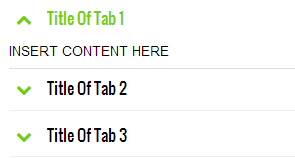
Output:

image

  • The above shortcode will create three toggle tabs where [item marks the start of a new panel
  • You can insert any HTML, text or even a new shortcode inside the content area represented by  INSERT CONTENT HERE
  • You can place your headline or title by replacing the text Title Of Tab 1,2,3 etc.
  • To create a new tab and panel you just need to add the following sub-shortcode above [/accordion]

[item title="Title Of Tab"]INSERT CONTENT HERE[/item]

Need Help?

You can insert the shortcode anywhere inside your post composer, your template or even inside the TEXT widgets or HTML/JavaScript widgets.

Let me know if you needed any help. Peace and blessings buddies =>

Friday, 3 April 2015

Introducing Blogger Shortcode Plugin

Blogger Shortcode Plugin

Surprise! After having served Blogger for over 5 years we are back again with yet another plugin that will transform blogger templates and especially blogging like never before. Equipping it with a system that will make web designing and creation of widgets a piece of cake! STCnetwork is proud to Introduce Blogger Shortcode Plugin that will let you add Web elements with very little effort without using any long complicated, ugly code. You can now insert videos, audios, photo gallery, tabs, accordions, etc. with just a single line of code inside your posts, widgets, sidebars and guess where else? also inside your Blog Comments! Embedding Objects in Blogger was never that easy before. Today we are taking blogger to the next Level. Lets get started!

What is a Blogger Shortcode?

Blogger shortcode is a macrocode i.e. a single line of code that contains a set of instructions which lets you do nifty things with no effort at all. Shortcodes can help you embed files or create objects in BlogSpot blogs with a single line of code that would normally require a lot of complex, long ugly code.

CSS3 buttons Shortcode

You can now easily insert objects such as Videos, Audios, Files, Slideshows and all important web elements such as accordions, tabs, colorful buttons, boxes etc. inside Header, Sidebar, Footer, Posts, Pages, Titles and amazingly even inside comments! It requires no prior knowledge of HTML, CSS or JavaScript. The plugin is extremely lightweight and its multiple-embed-support will reduce your Page Load time by 50%.

How Different is it From Wordpress Shortcode?

Wordpress has been our biggest source for inspiration and it would have never been possible to develop this plugin for Blogger if the logic was not already present. We simply converted the PHP functions into jQuery functions which are both platform independent and easy to implement.

Unlike Wordpress shortcodes which can only be inserted inside Post content, Blogger shortcode plugins lets you insert content even inside widgets and Comments! WP shortcode API is platform specific but our plugin offers cross-platform embedding support that is not limited to blogger blogs alone. It can surely work on any website be static or dynamic.
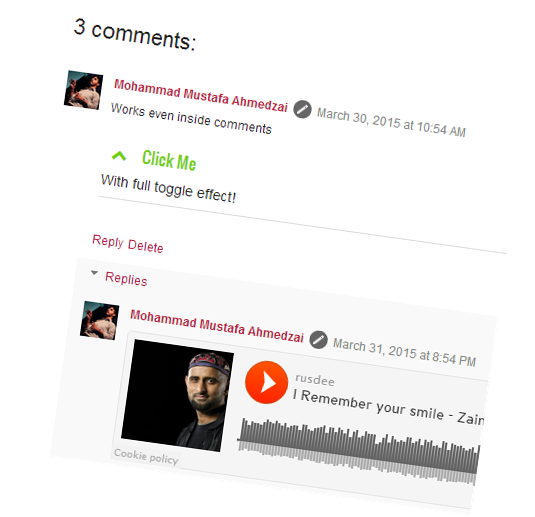
insert shortcodes in comments


Most exclusive feature of this plugin is to support nesting of shortcodes. You can insert a shortcode inside another one to offer full dynamic experience.

Shortcodes such as accordion and Tabs can be added a multiple times on a single page without effecting one another. This plugin optimizes and reduces Page Load time extremely well.

nested shortcodes


List of Supported Shortcodes

We have so far developed around 10 Shortcodes and we are planning to develop around 50 shortcodes within a  month inshAllah. Shortcodes will be created based on their importance and usability. We will release each shortcode with a separate tutorial.

A shortcode itself it not a code but a TEXT which is processed as HTML. Don't believe yourself? Believe it! :)

Following are the shortcodes developed so far.

Shortcode Definition
[accordion] Accordion is a vertically stacked list of items where each item can be "expanded" or "stretched" to reveal the content associated with that item. Items can be Toggled on and off easily. An example is the accordion widget
[tab] Tab widget allows multiple documents or panels to be contained within a single window, using tabs as a navigational widget for switching between sets of document. An example is the Multi Tab Widget
[code] Embeds syntax Highlighter which preserves the original formatting of source code
[table] Create responsive and fancy HTML Tables with multiple Rows and Columns
[quote] Inserts a Fancy Blockquote
[button] Inserts colorful CSS3 Buttons
[icon] Insert FontAwesome icons anywhere with custom options support
[soundcloud] Embeds SoundCloud Track
[dailymotion] Embeds Dailymotion Video
[youtube] Embeds YouTube Video
[divider] Inserts a Horizontal Separator to divide a section, also contains a Back To Top button
[num] Inserts a Number enclosed inside a circular background
[warning] Inserts a box with Warning message
[success] Inserts a box with Success message
[alert] Inserts a box with Alert message
[info] Inserts a box with Some Information message
[update] Inserts a box with Update status message
[facebook] Embeds Facebook Page Plugin
[image] Embeds Images anywhere you want in clear cut resolution!
[tooltip] Inserts a Fancy CSS3 Tooltip above or below hyperlink to show extra info

more on its way!..............


Installation Steps

Follow these steps to install the Shortcode Plugin on your blogger blog.

1 Go To Blogger > Template > Backup your template 

2 Click Edit HTML 

3 Search </body> 

4 Paste the following dynamically updated JS file just above it

<!-- Blogger Shortcode Plugin Dynamic JS File -->

<script src='http://downloads.mybloggertricks.com/shortcodes.js' type='text/javascript'></script>

5 Next Search For <head>

6 Paste the following CSS files just below it
<script src='http://ajax.googleapis.com/ajax/libs/jquery/1/jquery.min.js' type='text/javascript'></script>
<link href='http://fortawesome.github.io/Font-Awesome/assets/font-awesome/css/font-awesome.css' rel='stylesheet'/>
<link href='http://fonts.googleapis.com/css?family=Oswald' rel='stylesheet' type='text/css'/>

Note that in the above code I have included latest versions of jQuery and FontAwesome libraries. I suggest that you use these versions instead of any old versions you may already be using.

  
7 Save your template and you are all done!

New functions are dynamically inserted inside the Shortcode JS file and you need to install it only once. I will keep updating this page to introduce any update made to the script and new shortcodes created will be appended to the Table List on this page.

Shortcode Syntax

Shortcodes have a name and attributes. The attributes are options that help you configure an object. Shortcodes are symbolized by Square brackets. The braces are opened and closed just like HTML but with a much simpler format as shown below:

Suppose you need to embed a Dailymotion video inside your blog posts, sidebar or blog comments then you can do it in two ways.

[dailymotion src="x2lhjki"][/dailymotion]

or simply

[dailymotion src="x2lhjki" /]
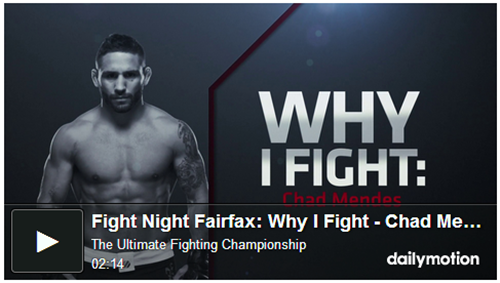
dailymotion shortcode for blogger

Now if you wish to change the color of the player button, hide player info and edit the player dimension then you can insert attributes as shown below

[dailymotion src="x2lhjki" width="100%" background="0080ff" height="100" info="0"][/dailymotion]

or simply

[dailymotion src="x2lhjki" width="100%" background="0080ff" height="100" info="0" /]

dailymotion shortcode

Note that the above is just an example, full details on how to use a dailymotion shortcode will be shared in its own tutorial

Syntax Errors

Avoid making these mistakes when typing shortcode names and attributes:

  1. Don't use camelCase or UPPER-CASE for attribute names or Shortcode names. Use only lowercase characters
  2. Don't add spaces between Shortcode Names and the Square Braces
  3. Shortcode macros may use single (') or double quotes (") for attribute values, or omit them entirely if the attribute value does not contain spaces.
    [table col='123' row=456]

    is equivalent to

    [table col="123" row="456"]


  4. A space is required between the shortcode name and the shortcode attributes. When more than one attribute is used, each attribute must be separated by at least one space.


  5. The shortcode parser does not accept square brackets within attributes.
    [tag attribute="[Some value]"]


How Does This Shortcode Plugin Works?


Shortcodes are written by providing a handler function "mbt(html)" . Shortcode handlers are broadly similar to WordPress filters: they accept parameters (attributes) and return a output. We used a jQuery function to parse through Square bracket content and attributes and then replace the Square bracket DOM with the HTML version and ignore or escape those Square braces which are enclosed across a name which is not registered through the global variable "var bhf". The Parser function recognizes registered shorctodes through the global variables only. Locations where shortcodes will work include Widgets, Blog Posts, Pages and Blog comments. Shortcodes placed elsewhere will be escaped.


Credits


� 2008-2015 STCnetwork.org.


Version: 1.0 (29-March-2015)


Creative Commons License 


Blogger Shortcode Plugin by STCnetwork is licensed under a Creative Commons Attribution-NonCommercial-ShareAlike 4.0 International License. You are most welcomed to share the plugin with your readership as long as you attach attribution link back to this blog post and avoid selling the plugin in a commercial product or service.


We have to thank a lot of people here for helping us in the Plugin development.


  • We would like to thank the helpful community at stackoverflow who helped us in optimizing the scripts as much as possible and writing down simple logics. If these shortcodes are nest-able then it is only because of the kind help I received from this community co-founded by @jeff Atwood


  • We would like to thank Wordpress for sharing their helpful API that helped us better understand some core logics. Indeed they are the pioneers behind this idea.


  • We would like to thank Tien Nguyen for providing an idea of how to traverse through a loop using jQuery and replace the Square brackets with HTML tags.


  • We would like to thank Ahmed Nasir for helping us in debugging the script and making it possible to embed shortcodes within Comment iframe windows.


What is Next?


In coming hours, we will post separate tutorials for each shortcode, new and more demanded shortcodes will be released. Embedding stuff in blogger will be at your finger tips. Get rid of those long, complicated, heavy scripts and add stuff in blogger with just one line of code!


For extra help and details on implementation and development of this plugin, please create a discussion Topic at our Forum where I am always available 24/7 for any help needed.


Do share your precious views on this plugin and let us know how can we improve it further. Do mention services for which you need a custom shortcode and we would love to develop it for you and share it for free on this blog. Peace and blessings buddies! =>